


 PCWorld
 Windows 11 tip: Open PowerShell or CMD in any folder with one click
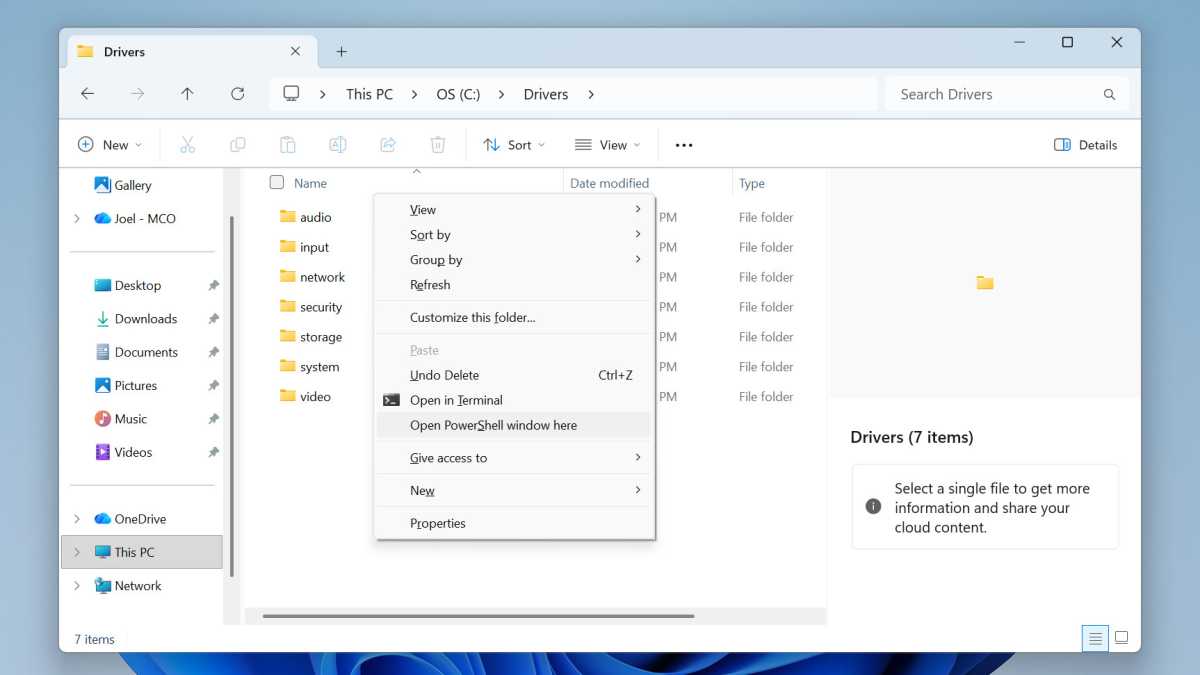
As a Windows 11 user, there might be times when you want to execute a Command Prompt action directly in a specific folder, like initiating a copy process. For more advanced stuff, you might want to quickly execute a PowerShell command, preferably without having to do much clicking. Both can be done easily with the following tip. To conveniently launch PowerShell starting in a particular folder, navigate to the desired folder in File Explorer. Then, hold the Shift key and right-click on an empty area. Then, select the “Open PowerShell window here” action from the context menu. Joel Lee / Foundry On the other hand, if you need the Command Prompt starting in that folder, select the “Open in Terminal” action instead. (This one doesn’t require holding Shift before right-clicking. You’ll see it in the regular context menu just with a simple right-click.) Note! When using the “Open in Terminal” action, it’s possible that it might just end up launching PowerShell anyway. If you’d rather it default to the Command Prompt, here’s what you can do: Joel Lee / Foundry Use the “Open in Terminal” option to launch PowerShell. Then, within the PowerShell window, use the Ctrl + Comma keyboard shortcut to launch PowerShell settings. Under the Startup > Default profile option, use the drop-down menu to select Command Prompt. Now, whenever Windows 11 tries to launch “the Terminal,” it will default to Command Prompt. Further reading: These 13 pro tips will make you a Windows 11 master