


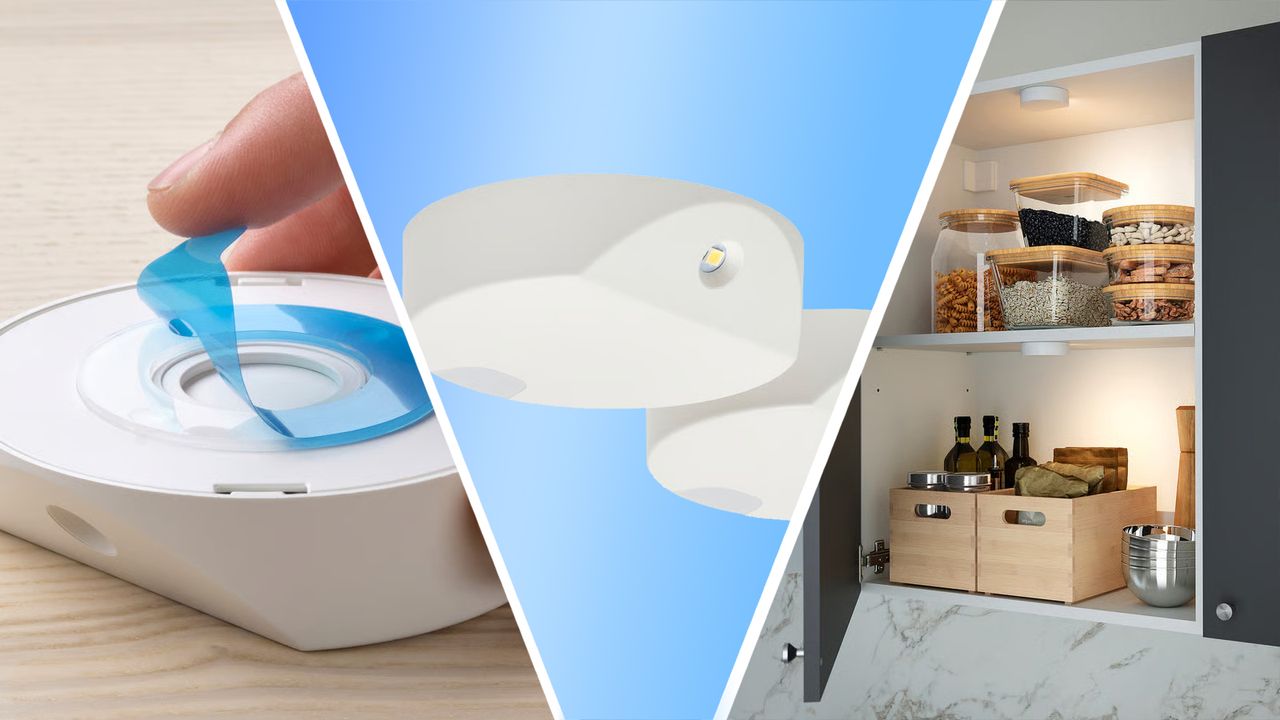
I thought this cheap Ikea cupboard light would help solve my storage woes — I was wrong
I had such high hopes for this motion sensor light, but when I got it home I was sorely disappointed
I had such high hopes for this motion sensor light, but when I got it home I was sorely disappointed

As autonomous agents take over, brands must adjust to a new reality in which machine‑led decisions increasingly shape commerce.

The post POCO X8 Pro Series Launches with Up To 9,000mAh Battery, 'Pro Max' Model & Iron Man Edition appeared first on Android Headlines .

Shop early Pokémon deals before Amazon's Big Spring Sale, from TCG boxes and tins to discounted Nintendo Switch games.

Putting in-game ads in full-priced games "would seem unfair," according to Strauss Zelnick, the head of GTA 6 parent company Take-Two. Speaking to The Game Business , Zelnick said in-game ads for free-to-play titles makes sense based on the business model, but not for $70 or $80 games. "It's difficult for me to believe that we would want to have interstitial advertising in a game that someone paid 70 or 80 bucks for. It would seem unfair," he said. Continue Reading at GameSpot

Beats and Nike's hardware partnership puts branding front and center, adding logos, colors, and messaging while leaving the underlying earbud technology unchanged. Limited-edition Powerbeats Pro 2 The limited-edition Powerbeats Pro 2 marks Beats' first hardware partnership. The release leans on design and marketing, even as it ties more closely into Apple's fitness ecosystem. Beats announced the collaboration on March 17. The company describes it as a crossover between sports, culture, and performance while keeping the underlying earbuds unchanged. Continue Reading on AppleInsider | Discuss on our Forums

One of the things many Facebook users have long wanted is a feature that shows who has visited and viewed their profiles. Now, a Facebook post is promising exactly that—but it’s a scam. Austrian fact-checking site Mimikama recently warned (machine translated) that a Facebook post with sensationalist title “Who’s stalking your profile? See names in 30 seconds” claims there’s a new feature that shows which Facebook users have visited your profile. The phrase “NEW: See who’s visited your profile!” is followed by a link. Clicking on this link is supposed to open a list of supposed visitors, but it actually leads to an external site on domain bildnachricht.com, which has nothing to do with Facebook. The false website claims that dozens of people have visited your profile and you’re just one click away from accessing the full list. If you click on it, you’re asked to log in with your Facebook details. However, Mimikama followed the link and verified that the link in question leads to a phishing site designed to steal the login credentials of interested Facebook users. As of now, Facebook still does NOT offer a feature that allows you to view who has visited your profile. Facebook explicitly says so on this support page : Facebook doesn’t let people track who views their profile. Third-party apps also can’t provide this functionality. If you come across an app that claims to offer this ability, please report the app. This isn’t the first time there’s been a scam that claims to be able to show you who’s visited your Facebook profile. It’s an age-old trap, and it’s no surprise that it’s making the rounds again. Attackers will do anything to trick Facebook users into revealing their login details. Further reading: About 10% of Meta’s revenue is from scammers
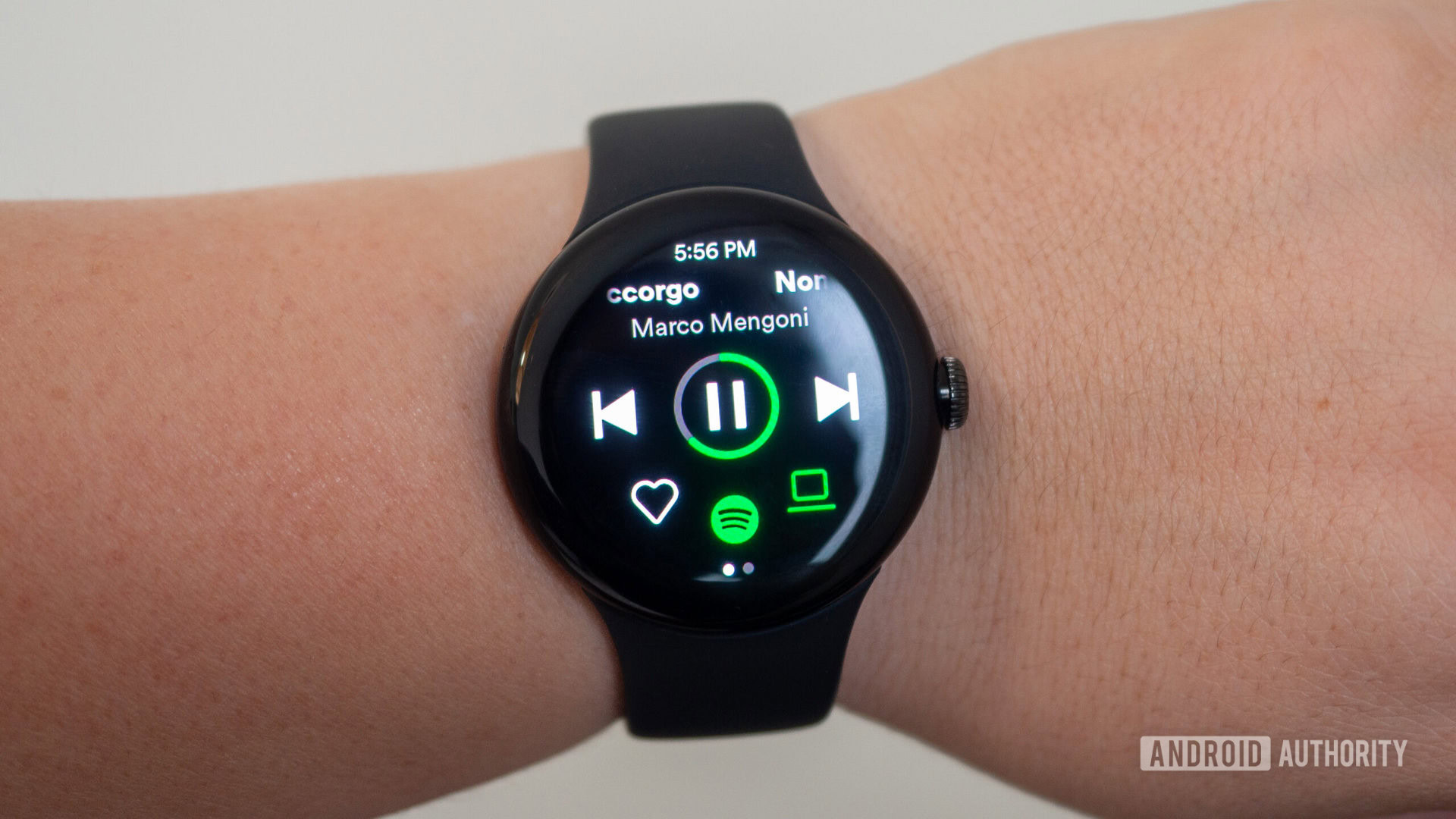
The update features a gesture-based navigation system and an immersive view with large album art right on your wrist.
Looking for NYT Connections answers and hints? Here's all you need to know to solve today's game, plus my commentary on the puzzles.

New Taylor Sheridan series The Madison isn't everyone's cup of tea — and this 80s classic movie on Prime Video might be a better alternative for Kurt Russell fans.

Okta's new blueprint spells out how companies can manage AI agents and includes an agent management platform, launching in April.

Pragamata continues to wow us with its beautiful environments and intense puzzle combat in our latest hands-on session.
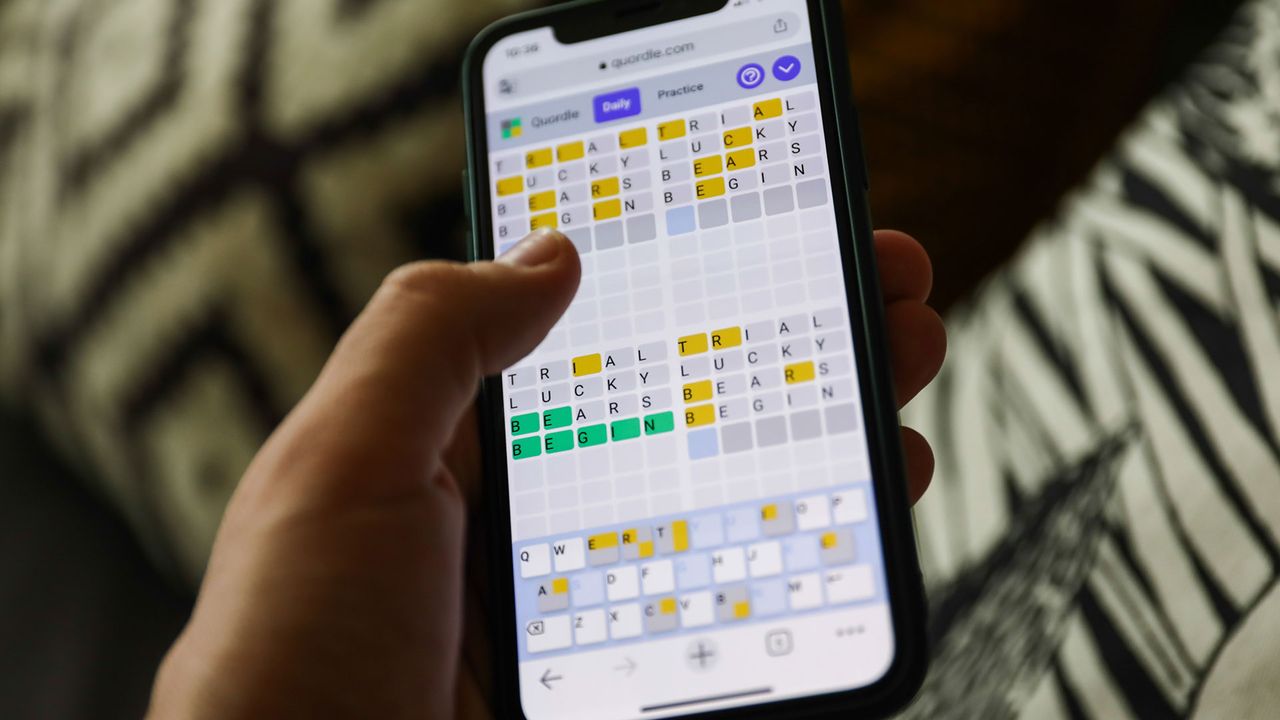
Looking for Quordle clues? We can help. Plus get the answers to Quordle today and past solutions.

Keeping your PC up to date isn’t just about installing the latest Windows updates. Hardware drivers and motherboard firmware (BIOS or UEFI) play a big role in system stability and security. While Windows Update can sometimes handle these updates, you shouldn’t rely on it completely. Outdated firmware, for example, can leave your system open to security risks. That’s why you’ve got to roll up your sleeves and do things the old fashioned way with a manual update. Here’s how you do it: First, check Windows Update regularly. In Windows 11, go to “Advanced Options” > “Optional Updates” to see if Microsoft provides any driver or firmware updates. If so, install them. If no updates pop up, install HWiNFO . This tool shows the exact model name of your motherboard and the currently installed BIOS/UEFI version, which you can find in the “Motherboard” section. Foundry Next, search Google for “UEFI,” “Update,” or “Support” together with your motherboard or PC model, and open the relevant result. In the support section, check whether a firmware update is available. If necessary, download it and follow the manufacturer’s instructions. In our example, we had to extract the downloaded zip file, copy the flash file to a FAT32-formatted USB drive, restart the PC, and open the BIOS/UEFI using the appropriate function key. Foundry All of this depends on the model and manufacturer, so be sure to follow the procedure described online for your PC or motherboard exactly. Important: Do not interrupt the update even if nothing seems to be happening and the screen stays dark for a few minutes. Be patient, and don’t turn off the computer or unplug it. After a short time, the system will restart itself or prompt you to press the Enter key. After that, there is no standard procedure: Windows may start automatically, or you might first need to press a specific function key. You should be able to see this on the screen. It sounds a bit complicated, but it’s actually quite simple. I’ve performed dozens of BIOS and UEFI updates over the past 20 years without any problems!

Capcom's new third-person shooter 'Pragmata' just keeps looking better and better every time I play it.

As AI agents take the reins for online shoppers, Sam Altman's unconventional startup is looking to expand its verification offerings to support agentic commerce.
 TechRadar
  Android Headlines
  Mashable
  GameSpot
  AppleInsider
  PCWorld
  Android Authority
  TechCrunch